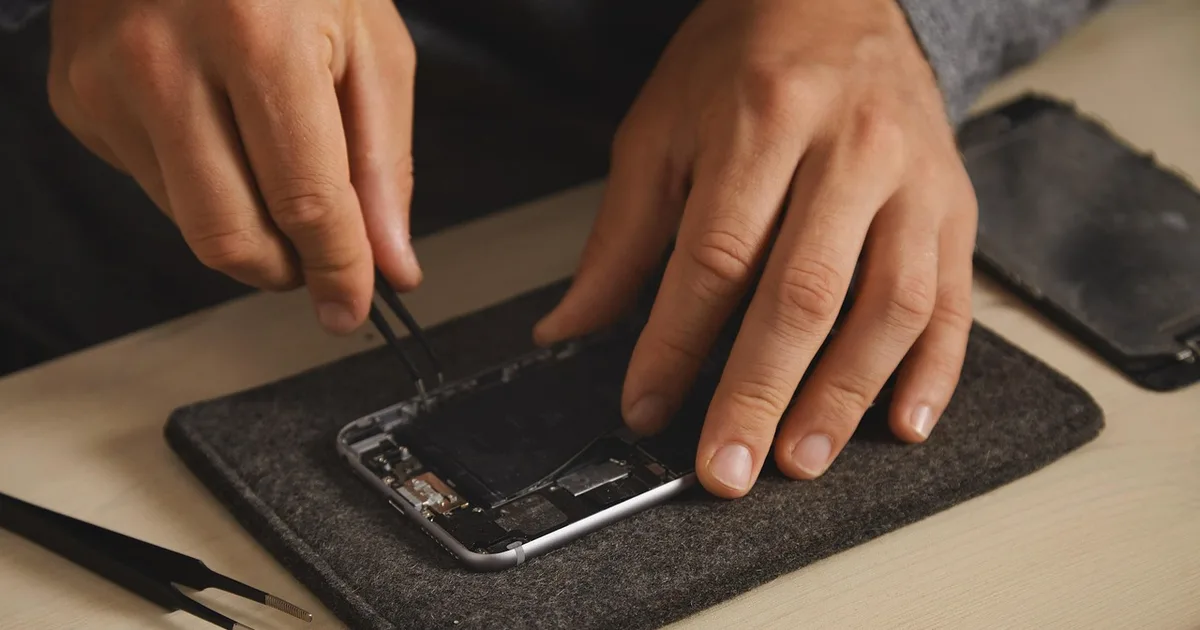
How to Run a Samsung Galaxy Diagnostic Test in 5 Minutes (2026)
To run a Samsung Galaxy diagnostic test, open the Samsung Members app, go to Support, choose Phone diagnostics and tap Test all. The phone checks the touch screen, sensors, battery status and more, and shows a pass or fail result for each item, usually in around five minutes.
I have bought and sold enough used Galaxies, and fielded enough “is my phone dying?” texts from family, to have a routine. This is that routine, written for US owners. Menu names shift between models and One UI versions, so read the paths below as accurate for the general case as of October 2026 and verify on Samsung’s support pages when something looks different.
How to run a Samsung Galaxy diagnostic test, step by step?
The built-in tool lives inside Samsung Members. Samsung’s own support documentation describes the same path, including the Test all option and the list of components covered: see Samsung’s diagnostics guide.
- Take off the case and the screen protector. A cheap protector is the most common cause of phantom touch and proximity failures.
- Open Samsung Members. If it is not on your phone, install it from the Galaxy Store or Google Play.
- Tap Support (on some versions it is Get help), then Phone diagnostics.
- Tap Test all, or stop the run and pick individual tests.
- Follow the prompts. Touch tests ask you to drag or tap across the screen, and some tests ask you to press hardware buttons.
- Screenshot the result screen before you do anything else.
Some Galaxy phones also expose the same tools from Settings, inside Battery and device care. If you find it there, it is the same family of checks, so use whichever route you see first.
| What gets tested | What it tells you | Red flag |
|---|---|---|
| Touch screen | Whether every part of the display tracks your finger | Dead zone, lines that break |
| Sensors | Proximity, light, motion | Screen stays on during calls, brightness jumps |
| Battery status | Overall battery condition | Warning or replacement notice |
| Speaker and microphone | Playback and recording | Crackle, caller cannot hear you |
| Cameras | Front and rear capture | Black frame, focus hunting |
Not every phone has every test. A missing item is not a defect.
Why bother testing a phone that seems fine?
Because intermittent problems are the ones people misdiagnose. A touch screen that misses one tap in twenty gets blamed on a laggy app. A battery that falls from 40 percent to 12 percent in an hour gets blamed on streaming. A two-minute test tells you whether the cause is hardware or software, and that decides whether you reinstall an app or book a repair.
There are four moments when I always run it:
- After a drop or water exposure, even if nothing looks broken
- Before buying or selling a used phone
- After a major update, if something feels off
- Before contacting support, so you have a record
That last one matters in the US. Whether you deal with Samsung, a carrier store or a third-party repair shop, a screenshot of a failed test shortens the conversation. If you bought the phone through a carrier installment plan or have protection coverage, check the plan terms before you open a case, since coverage rules vary by provider.
How do I check for screen burn-in on a Galaxy?
Show solid color screens at full brightness in a dark room and look for faint outlines of content that was on the display before. Go through black, white, red, green and blue, and give each at least half a minute.
Galaxy phones use OLED panels, where each pixel makes its own light. Pixels that show the same thing for years, such as a status bar, a navigation bar or a game HUD, can age faster than their neighbors. The result is a faint ghost of that element.
The common mistake is calling every ghost burn-in. A temporary image retention can fade within seconds or minutes. Permanent burn-in stays. My rule of thumb: if the outline is still plainly visible on a white screen after several minutes, treat it as real and have the display checked. If it fades, change the habit that caused it, such as leaving one app open on screen for hours.
- Raise screen timeout only when you need it
- Use dark mode, which also saves power on OLED
- Check for ghosting with the camera pointed away, because reflections can look like marks
- On a used phone, do this check yourself in the seller’s presence. Listing photos almost never show burn-in
How do I check Galaxy battery health?
Open the battery status test in Samsung Members, or look in Settings under Battery. What you see depends on the model and software. Some phones show a percentage of original capacity or a rating like Good, while others show only a general status.
You may find tips online about dialing a code to reach a hidden battery screen. These come and go with software updates, and community reports suggest they stopped working on some recent models and carrier versions, so I would not rely on one. The official menus are the dependable route. Samsung’s regional support pages explain the diagnostic and battery checks for each device family, for example in this Samsung device status overview.
| Symptom | Likely cause | First step |
|---|---|---|
| Phone does not last a day | Aged battery or a background app | Check usage by app, then run diagnostics |
| Hot while charging | Cable, charger or battery | Swap to a certified charger and compare |
| Percentage drops suddenly | Battery wear | Screenshot the result, contact support |
| Back panel bulging | Swollen battery | Stop charging, get it serviced right away |
The last row is the only urgent one. A swollen battery is a safety issue, so do not keep using or charging the phone. For everyday drain problems, my older phone battery settings guide walks through the ten changes that matter most.
Replacement cost depends on the model and where you go. Ask Samsung or a repair shop for a quote before you decide, and compare it with the trade-in value of the phone.
How do I scan a Galaxy phone for malware?
Hardware diagnostics do not look for malware. For that, use Google Play Protect, which is built into Android, and the security and privacy tools in Settings. Google explains how it works on its Play Protect help page.
The steps I use:
- Open Google Play, tap your profile icon, choose Play Protect and run a scan.
- In Settings, open the security and privacy section and look for the app protection or device protection scan.
- Go through the app list for anything you do not remember installing.
- Review permissions. Turn off notification access and “display over other apps” for anything that has no reason to have it.
- Remove suspicious apps, then scan again.
- If the problem remains, back up what matters and consider a factory reset.
Signs worth acting on: ads popping up when no app is open, a battery that drains for no visible reason, data use that spiked, and apps you never installed.
On the antivirus question, I will commit: if you install apps only from the official stores, keep updates on and never tap links in texts that ask you to install something, you do not need a paid antivirus. Most real-world damage I hear about starts with someone approving an install or giving away a code, not a missing scanner. The FTC keeps a plain-language page on recognizing phone and text scams that is worth ten minutes. If you want one extra security app, pick one and stop there. For a wider look at tools, see the cybersecurity solutions comparison, and for the network side, the home WiFi security checklist.
What should I test before buying a used Galaxy?
Run the full diagnostic, do the solid-color burn-in check, and verify the accounts and carrier status. Meet at a place with Wi-Fi and good cell signal so you can place a call and load a page.
| Check | How | Walk away if |
|---|---|---|
| Full diagnostic | Samsung Members, Test all | Any touch, sensor or camera failure |
| Burn-in | Solid black, white, red, green, blue | Clear outline on white |
| Account lock | Settings, Accounts: seller’s Samsung and Google accounts removed | Seller cannot sign out |
| Carrier status | Ask for the IMEI and check with the carrier | Locked, financed or reported lost |
| Charging | Plug in and watch heat and speed | Port loose, very hot |
| Calls | Call someone on speaker and handset | Echo, one-way audio |
Here is a composite case, not one real person, built from the pattern I see repeatedly. A buyer meets a seller in a parking lot, checks that the screen turns on, and pays. At home, during the first call, the screen stays lit against their cheek and the call drops when a button gets pressed. The proximity sensor was bad. Running the sensor test on site would have taken thirty seconds. By the time the problem showed up, the sale was final and the seller stopped answering.
The second most common failure is account lock. Make the seller remove their Google and Samsung accounts in front of you, and do not accept “I will do it later.” Moving your own data to the new phone is covered in my phone-to-phone data transfer guide, and if you are still choosing a model, the best smartphones guide helps.
What do I do when a test fails?
Restart the phone, take the case and screen protector off, and run the same test again. A one-time failure after a long uptime often clears. A repeat failure does not.
If it fails twice, screenshot the result and then work through these:
- Check whether the phone is still under warranty or a protection plan
- Back up your data before any repair visit
- Book through Samsung support or a store you trust, and ask for a written estimate
- For a used phone bought from an individual, message the seller right away with the screenshot
Do not wait for the problem to “get bad enough.” Cracked displays and swollen batteries get more expensive and less safe with time.
What about the keyboard, and Galaxy Buds hearing features?
Two other things come up in “Galaxy check” searches, and they are not hardware tests.
The Samsung Keyboard has a writing suggestions feature that underlines possible errors in supported languages and apps. Open the keyboard settings, turn it on for the language you use, then tap an underlined word to see the suggestion. It does not catch everything and its coverage depends on the app and keyboard version, so proofread anything important yourself.
On Galaxy Buds, news reports in 2026 said Samsung had gained US FDA clearance for a hearing aid feature, with availability tied to specific models and markets. I could not confirm launch details from an official Samsung page, so check Samsung’s own announcement for your model before you plan around it. Whatever the feature does, it supports a doctor’s care and does not replace a hearing exam.
How often should I run these checks?
Quarterly is enough for a healthy phone. Add a run after drops, spills and big updates.
| Moment | What to do | Time |
|---|---|---|
| Every 3-6 months | Test all, battery status | About 5 minutes |
| After a major update | Touch, sensors, heat check | About 3 minutes |
| Before a used purchase | Full test, burn-in, accounts | About 10 minutes |
| After a drop | Screen, speaker, cameras | About 5 minutes |
A diagnostic costs nothing and takes less time than a coffee order. The value is the record it leaves: if a problem shows up next month, you have proof of how the phone behaved today. One more habit: keep a screenshot of your last good result in your photos, so the next comparison is easy.
This article is general information, not repair, legal or medical advice. Menu names and features vary by Galaxy model, carrier and One UI version. Confirm current steps on Samsung’s official support pages.
How to run a Samsung Galaxy diagnostic test?
Open the Samsung Members app, go to Support, choose Phone diagnostics, and tap Test all. The phone checks items such as the touch screen, sensors and battery status, and some tests ask you to tap or press things on screen. Exact menu names vary by model and One UI version.
Do I need to install anything to run Galaxy diagnostics?
Samsung Members comes preinstalled on most US Galaxy phones. If yours is missing it, the Galaxy Store or Google Play carries it. Some models also reach the same tools from Settings under Battery and device care.
How do I check for screen burn-in on a Galaxy?
Display solid black, white, red, green and blue images at full brightness in a dim room and look for faint outlines of old content. If a ghost image fades within a minute it is probably temporary. If it stays clearly visible after several minutes, get the screen looked at.
Is there a way to see Galaxy battery health as a percentage?
It depends on the model and software version. Some phones show a percentage or a status like Good in Samsung Members diagnostics or in Settings, and others show only a general status. Samsung's support site lists what your model supports.
Does Samsung diagnostics tell me if the phone has malware?
No. Hardware diagnostics test components, not apps. For malware, use Google Play Protect and the built-in security and privacy tools in Settings, and review recently installed apps and risky permissions by hand.
Do I need a separate antivirus app on a Galaxy phone?
Most people who install apps only from Google Play or the Galaxy Store and keep updates on do not need one. If you sideload apps, handle sensitive accounts often, or just want a second opinion, one reputable security app is enough. Running several together slows the phone.
What should I test before buying a used Galaxy phone?
Run the full Samsung Members test, check burn-in with solid color screens, check that the phone is signed out of the seller's Samsung and Google accounts, and confirm it is not carrier-locked or reported lost. Meet somewhere with Wi-Fi so you can test calls and data.
What do I do if a test fails?
Restart the phone, remove the case and screen protector, and run the failed test again. If it fails again, screenshot the result and contact Samsung support or your carrier. Keep the screenshot, since it helps in a warranty or repair conversation.
How often should I run a diagnostic on my Galaxy?
Every three to six months is plenty for most people. Run it right away after a drop, water exposure, a big software update that causes new problems, or a sudden jump in heat or battery drain.
관련 글

How to Transfer Data Between Phones in 2026: Complete Guide (All Scenarios)

iPhone to Android (or Back): Full Data Transfer Guide 2026
Best Video Editing Software for Beginners in 2026: Free vs Paid

Galaxy Z Fold 7 Rumors 2026: Everything We Know So Far

Cybersecurity Solutions Comparison Guide 2026