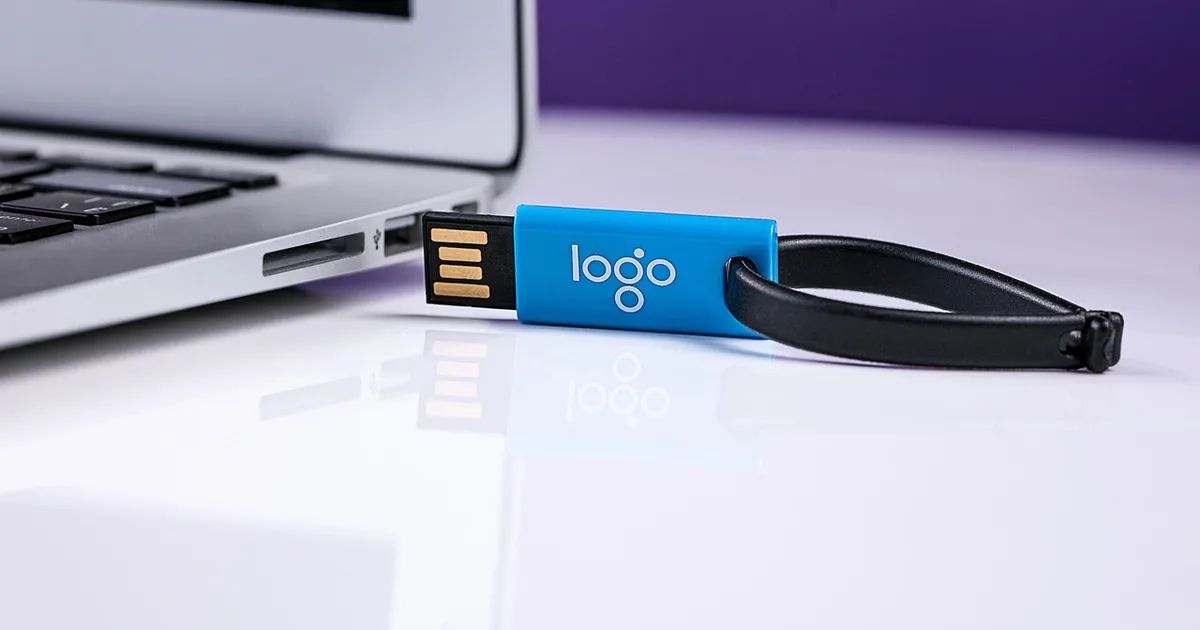
How to Make a Windows 11 Install USB and Do a Clean Install (US Guide, 2026)
How do you make a Windows 11 install USB?
You make a Windows 11 install USB by running Microsoft’s free Media Creation Tool and writing the installer to a blank flash drive of at least 8 GB. Boot a PC from that drive and you can install or reinstall Windows from scratch.
Get the tool only from Microsoft’s Windows 11 download page. Search results for “Windows 11 ISO download” are crowded with lookalike sites, and an installer is the one file you cannot afford to get from a stranger. If the address does not end in microsoft.com, close the tab.
The whole job takes about 15 minutes of your attention plus download time. Most of the effort goes into the steps around it: backing up, checking that your PC qualifies, and not wiping the wrong drive.
What do you need before you start?
Gather everything first, because the point of no return comes during setup, not during USB creation.
| Item | Requirement | Note |
|---|---|---|
| USB flash drive | Blank, 8 GB or larger (Microsoft’s figure) | Everything on it is erased; 16 GB gives headroom |
| Working PC | Internet, administrator account | The tool downloads several gigabytes |
| Target PC | 64-bit CPU, 4 GB RAM, 64 GB storage | Details in the next section |
| Backup drive or cloud | External SSD, OneDrive, Google Drive | Documents, photos, browser data, game saves |
| License | Existing digital license or a purchased key | Bare-metal builds need one |
| Drivers | Maker’s support page | Wi-Fi first, so you are not stranded offline |
A habit that saves people: download the Wi-Fi or Ethernet driver for your exact laptop model onto a second stick before you wipe anything. Windows 11 ships with broad driver coverage, but a brand-new laptop occasionally boots into a desktop with no network, and then you are googling driver names from your phone.
If you are moving phone data around at the same time, our phone-to-phone data transfer guide covers that side of the backup problem.
Can your PC actually run Windows 11?
Microsoft’s Windows 11 specifications page lists the baseline: a 64-bit processor with two or more cores, 4 GB of RAM, 64 GB of storage, UEFI firmware with Secure Boot capability, and TPM 2.0. Features and details can change by release, so confirm on that page before you commit.
The two items that trip people are TPM and Secure Boot. Many PCs built after roughly 2018 have both but ship with them disabled. Two quick checks:
- Press Windows key + R, type
tpm.msc, and read the “Specification Version” line. - Run Microsoft’s PC Health Check app and see whether it says the PC can run Windows 11.
If TPM shows as missing, look in firmware (BIOS/UEFI) settings for “PTT” on Intel or “fTPM” on AMD, the names for firmware TPM. Flipping that switch often fixes it. If your CPU is simply too old, you are looking at the workaround section below, or at a new PC.
Windows 10 reached end of support on October 14, 2025, according to Microsoft’s lifecycle notice, which is why so many people with older machines are suddenly asking about all of this.
What are the steps with the Media Creation Tool?
This is the official route and the one I would pick for a first-timer. It involves no third-party software.
- Plug the blank USB drive into a working PC. Move any files off it first.
- Download the Media Creation Tool from the Microsoft page above.
- Right-click it and run as administrator, then accept the license terms.
- Uncheck “Use the recommended options for this PC” and confirm English (United States), Windows 11 and 64-bit.
- Choose “USB flash drive” as the media. If the drive is missing, click refresh.
- Wait for the download and creation to finish. Do not unplug the stick.
- When it says the drive is ready, click Finish.
The tool builds x64 media only. Microsoft states that Arm-based PCs should wait for the Windows Update prompt instead.
What if you prefer an ISO file?
The same Microsoft page offers an ISO. That is a multi-edition x64 image, and your product key decides which edition unlocks. You can mount it and run setup.exe for an upgrade, or write it to USB with a tool such as Rufus. Microsoft also publishes SHA-256 hashes, so you can run Get-FileHash in PowerShell and compare to confirm the download was not tampered with.
Is Rufus a better way to build the drive?
Rufus is a free open-source utility, and you should download it only from its official site (rufus.ie). It needs an ISO, but it gives you options the Microsoft tool lacks.
| Media Creation Tool | Rufus | |
|---|---|---|
| Publisher | Microsoft | Independent open-source project |
| Starts from | Internet download | An ISO you already have |
| Difficulty | Easy | Moderate |
| Install options | None | Can skip some requirements |
| Best for | Most people | Older PCs, repeat builders |
Recent Rufus releases show extra checkboxes when you select a Windows 11 image, such as removing the 4 GB RAM, Secure Boot and TPM 2.0 checks, or skipping the online-account requirement. Options move between versions, so go by what is on your screen.
One setting worth understanding: partition scheme. Nearly every PC from the last several years wants GPT with UEFI. Only very old machines need MBR with legacy BIOS. Open System Information and read “BIOS Mode” if you are unsure.
Is it safe to bypass the TPM requirement?
It works often, and I would still avoid it on a machine you rely on. Microsoft says plainly that installing on unsupported hardware is not recommended and that the PC may not receive updates.
The bypasses fall into two camps: build the USB with Rufus’s requirement-removal options, or edit a registry value during setup. Either can get Windows onto the disk. The risk shows up later, when a major feature update refuses to install or when you cannot be sure how long security patches will keep flowing.
My rule of thumb:
- Banking machine, work laptop, anything holding client data: enable TPM in firmware or replace the hardware.
- Spare desktop, test box, a kid’s old PC for homework: a bypass is a reasonable gamble, as long as you keep real backups.
Security-minded readers deciding between built-in protection and paid suites can compare options in our cybersecurity solution comparison.
How do you boot from the USB and install Windows?
Power the PC off, plug in the USB, power it on, and tap the boot menu key repeatedly. The key depends on the maker, so read the splash screen for a hint. These are the usual ones, not guarantees.
| Maker | Common boot menu key | Firmware setup key |
|---|---|---|
| Dell | F12 | F2 |
| HP | Esc, then F9 | F10 or Esc |
| Lenovo | F12 (or the Novo button) | F1 or F2 |
| ASUS | Esc or F8 | F2 or Del |
| Acer | F12 | F2 |
| Microsoft Surface | Hold volume down while powering on | Hold volume up |
| Custom builds (motherboards) | F8, F11 or F12 | Del |
Then:
- Choose the USB entry, usually labeled “UEFI: …” followed by the drive name.
- Confirm language, time format and keyboard (English US, for most American readers), then click Install now.
- When asked for a product key, enter it or choose “I don’t have a product key” to continue.
- Pick the edition (Home or Pro). Match what your license covers, or automatic activation will not kick in.
- Select “Custom: Install Windows only (advanced)”.
- On the drive list, pick the target. Deleting old partitions gives you a clean install.
- Let it run. The PC restarts several times. After the first restart, make sure it boots from the internal drive and not back into the USB installer.
- Finish the region, network and account screens.
Step 6 is where mistakes cost real data. On a machine with two drives, people erase the big one because it looks like the system drive. Check the size and name. When in doubt, physically unplug the data drive before booting the installer.
What about the Microsoft account screen?
Windows 11 Home expects an internet connection and a Microsoft account during setup, and the tricks for creating a local account get patched with regularity. If you want a local account, your most dependable options are Rufus’s skip-account setting or signing in once and switching the account type later in Settings.
How does Windows 11 activation work?
Activation depends on your history with that PC, and Settings > System > Activation shows where you stand after setup.
| Situation | What happens | Watch out for |
|---|---|---|
| Reinstalling on a PC that was already activated | Usually activates itself online via a digital license | Choose the same edition |
| Upgrading a genuine Windows 10 PC | Typically activates automatically | Big hardware swaps may require reactivation |
| New PC sold without an OS, or a custom build | You must buy a license | Buy from a reputable seller |
| Replaced motherboard | Use the activation troubleshooter | Link your license to your Microsoft account beforehand |
Buy keys from Microsoft, a major retailer or a known authorized reseller. Prices that look too good often mean a reseller of volume-license keys or a key that gets revoked later, and people report losing activation weeks afterward. If a listing makes you hesitate, check the refund terms and who the seller is first.
Microsoft’s activation support article walks through the troubleshooter and the error codes. An unactivated copy keeps running, though personalization settings are restricted and a watermark reminds you.
What should you do after the install finishes?
Seeing the desktop is not the finish line. This order spares you later headaches.
- Open Settings > Windows Update and click Check for updates. Repeat until it reports nothing new; one pass rarely catches everything.
- Visit your PC maker’s support page for graphics, chipset and Wi-Fi drivers, because Windows Update misses some devices.
- Check display scaling, resolution and power mode.
- Verify activation status.
- Copy your backup back, then reinstall your browser and daily apps.
- Confirm Windows Security is on. If you travel or use public Wi-Fi, a look at our VPN services comparison may help.
- Make a recovery drive, or simply keep this installer stick in a drawer.
If the network will not connect after setup, rule out the router before blaming drivers. Our home Wi-Fi security checklist covers common router settings, and the internet and phone plan comparison is useful if the connection itself is the weak link.
A failure case worth learning from
This is a composite of common mistakes, not one person’s story. Someone decides to wipe a secondhand laptop. They run the Media Creation Tool on a 16 GB stick that still has vacation photos on it, skipping past the warning that the drive will be erased. The photos are gone. At boot, the USB does not appear, because firmware was set to legacy mode and Secure Boot was off, and fixing that takes twenty minutes of searching.
Then, in the installer, they delete the biggest partition, which turns out to be a second drive full of tax records. The laptop gets a clean Windows, and a recovery program has to try to retrieve the rest. Three habits would have prevented all of it: use a blank stick, check firmware boot mode before blaming the USB, and read drive sizes before you delete anything.
What is the last-minute checklist?
- Files backed up and tested on a second device
- Browser passwords synced or exported, authenticator apps transferred
- USB blank and at least 8 GB
- Installer downloaded from microsoft.com
- TPM 2.0 and Secure Boot status checked
- License or activation status known
- Wi-Fi driver saved separately
- Laptop plugged into power
- Drives to wipe and drives to keep clearly identified
If you also fight with robocalls while reinstalling your phone-linked accounts, our spam call blocking guide is a quick companion read.
This article is general information, not professional advice. Requirements, menu names and activation policies can change with Windows releases, so confirm the details on Microsoft’s official pages. Always back up your data before installing; you are responsible for any data lost during the process.
How do I make a Windows 11 install USB?
Download the Media Creation Tool from Microsoft's Windows 11 download page, run it as an administrator, choose to create installation media for another PC, and pick a USB flash drive. The drive must be blank and at least 8 GB, because everything on it is erased.
How big does a Windows 11 install USB need to be?
Microsoft says at least 8 GB. Because the install image keeps growing, many people buy a 16 GB or 32 GB stick for headroom. A cheap USB 3.0 drive works fine; the stick only has to be empty and healthy.
Will making a bootable USB erase my files?
Yes, anything on the USB drive is deleted, whether you use Microsoft's tool or Rufus. Copy your photos and documents off the stick first. The files on the PC you are installing onto are only erased if you wipe the system drive during setup.
Do I need TPM 2.0 to install Windows 11?
Microsoft lists TPM 2.0, UEFI with Secure Boot capability, 4 GB of RAM, 64 GB of storage and a 64-bit processor as the requirements. Workarounds exist for older PCs, but Microsoft does not recommend them and warns that an unsupported PC may stop receiving updates.
Is a clean install better than an in-place upgrade?
A clean install removes years of leftover software, drivers and settings, so it fixes more problems. An in-place upgrade keeps your apps and files, which is faster but carries the old mess forward. Back up either way.
Do I need a product key to install Windows 11?
You can install and run Windows without entering a key, but it will be unactivated and some personalization features are locked. A PC that already had a genuine Windows license usually reactivates itself online. A bare-metal build needs a purchased license.
Will Windows 11 activate automatically after a reinstall?
On a PC that was previously activated, a reinstall of the same edition normally activates once it connects to the internet, because the license is stored as a digital entitlement tied to the hardware. Check Settings, System, Activation to confirm.
Why does my PC not boot from the USB drive?
Press your maker's boot menu key (often F12, F10, F9 or Esc) right after power-on, and pick the UEFI entry for the USB. If it is missing, check that UEFI mode is on, try a different USB port, and turn off Fast Boot in firmware settings.
Do I need a Microsoft account to set up Windows 11?
Windows 11 Home pushes you to sign in with a Microsoft account and be online during setup. Workarounds for local accounts change with almost every build, so do not count on them. Rufus offers an option to skip the requirement when it writes the drive.
What should I do right after installing Windows 11?
Run Windows Update until it finds nothing new, install graphics and Wi-Fi drivers from your PC maker if needed, confirm activation, then restore your files. Make a recovery drive or keep this USB for future repairs.
관련 글
How to Run a Samsung Galaxy Diagnostic Test in 5 Minutes (2026)
Best Video Editing Software for Beginners in 2026: Free vs Paid
Best GaN Charger in 2026: How to Choose 65W, 100W or Multiport
iPhone 16 vs Galaxy S25 in 2026: Which One to Buy After the iPhone 17 and Galaxy S26

Best Free VPNs in 2026: Which Ones Are Actually Safe?